1076 Error Gemini: What It Means and How to Fix It


Gemini error 1076 is a “Something went wrong” failure that appears when Google Gemini cannot successfully complete or continue a request.
It can appear because of a temporary Gemini outage, a stuck conversation, an account-session problem, a browser or network issue, or a failure somewhere between the Gemini interface and Google’s backend systems.
Error 1076 attracted particular attention on 10 June 2026, when Google experienced a major Gemini service disruption. Users also reported error 1099 during the same incident.
Google later confirmed that the outage was caused by extreme database read contention involving the infrastructure responsible for Gemini’s tool deployment metadata.
During the main impact period, around 50% of attempts to send prompts failed.
That incident proves that 1076 can be generated by a Google-side infrastructure failure. However, seeing the error today does not automatically mean Gemini is experiencing another global outage.
What Does Gemini Error 1076 Mean?
Google does not currently publish a simple definition stating that error 1076 always represents one specific technical fault.
In practice, the message means that Gemini failed to complete the requested operation.
Users have encountered it when:
- Sending an ordinary text prompt
- Continuing a long conversation
- Using a custom Gem
- Uploading an image or document
- Accessing Gemini from a browser
- Using the Android or iOS app
- Switching between Gemini models or modes
- Using Gemini through Google Workspace
- Using Gemini integrations within Chrome
During the confirmed June 2026 outage, error 1076 appeared because Gemini’s backend infrastructure was unable to reliably retrieve information required to process requests.
In other cases, however, a 1076 error may be isolated to one conversation, browser session or Google Account.
That is why troubleshooting should begin by identifying the scope of the failure rather than immediately clearing every browser setting.
What Caused the Major Gemini 1076 and 1099 Outage?
The 10 June 2026 outage provides the clearest technical explanation Google has published for widespread 1076 errors.
The problem was considerably more specific than simply “a database performance issue”.
Google said Gemini relied on a foundational database service responsible for managing tool deployment metadata.
An index within that database contained a column used to track deployment expirations. A large number of rows contained similar values.
Instead of database requests being spread evenly across the infrastructure, traffic became concentrated on a small number of database shards.
This created what database engineers call a hot shard or hotspotting condition.
As demand increased, those shards became overwhelmed.
The One-Minute Cache Made the Problem Worse
Gemini also used an in-memory cache with a Time To Live of only one minute.
That meant cached information had to be refreshed from the database frequently.
As the database began struggling, cache refreshes failed. The cache hit rate then dropped, forcing even more requests directly onto the already overloaded database.
Google reported that its internal tool-management service experienced more than a 10-fold increase in database calls during the failure.
The sequence was effectively:
Higher request volume → overloaded database shards → failed cache refreshes → more direct database requests → further overload → Gemini requests failing.
At the storage level, database failure rates rose as high as 60%.
For Gemini users, the visible effect was approximately a 50% error rate when sending prompts.
Many of those failed requests appeared as:
“Something went wrong (1076)”
or
“Something went wrong (1099)”
How Google Fixed the Problem?
Google applied several mitigations rather than relying on one simple server restart.
Engineers:
- Rate-limited access to the most heavily affected database shards
- Redistributed common index values across more database shards
- Increased the cache TTL from one minute to 20 minutes
- Reduced database RPC deadlines to prevent requests accumulating during periods of high latency
- Improved load distribution across the database infrastructure
Google also said longer-term changes would include improved hotspot monitoring, stronger database-index design standards, adaptive caching and additional protection against database overload.
How Serious Was the 10 June 2026 Gemini Outage?
The outage affected considerably more than the standard Gemini website.
Google documented problems across:
- Gemini on the web
- Android
- iOS
- macOS
- Gemini in Chrome
- Gemini Workspace integrations
- The Gemini Side Panel
- Some Google Drive attachment functionality within Gemini
Both consumer Gemini accounts and enterprise Google Workspace customers were affected.
Google’s final report said the main period of elevated errors lasted approximately 6 hours and 55 minutes, although full service restoration was confirmed after a longer overall incident period.
Crowd-sourced outage reports also rose sharply.
Downdetector data reported in contemporary coverage showed US reports climbing above 1,100, eventually passing 1,400 at one stage, while UK reports were around 450 during the disruption.
Those figures represent user-submitted outage reports rather than Google’s internal request volumes, but they illustrate how widely the failure was noticed.
Gemini 1076 vs 1099 vs 1013: What Is the Difference?
Users regularly search for error 1076 alongside errors 1099 and 1013.
There is an important limitation: Google has not published authoritative definitions assigning each number to one exact technical failure.
Therefore, descriptions circulating in community discussions should be treated as troubleshooting clues rather than official error-code documentation.
| Error | What Users Typically Experience | Likely Area to Check | First Step |
| 1076 | Prompt fails, returns to input box, request times out or conversation stops working | Session, conversation, browser-to-backend communication or Google infrastructure | Retry once, then test a new chat |
| 1099 | “Something went wrong” while processing or continuing a conversation | Gemini service, session state or backend processing | Test another chat, model and device |
| 1013 | Conversation fails despite moving devices or sessions | Account/session state has been suggested in community troubleshooting | Test a fresh chat and another account |
The June 2026 outage is particularly important because 1076 and 1099 were officially reported together as symptoms of the same backend incident.
This means users should not assume that 1076 always means a browser problem while 1099 always means something completely different.
The same infrastructure failure can produce more than one visible error code.
How to Fix Gemini Error 1076?
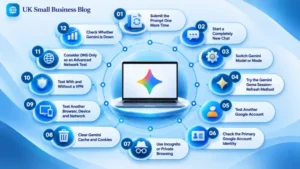
The best approach is to test the simplest possibilities first and move towards account, network and server-level diagnostics.
1. Submit the Prompt One More Time
During the June outage, some users found that Gemini returned their submitted prompt to the text box rather than processing it.
Submitting it again sometimes succeeded.
If a prompt immediately bounces back with error 1076, pressing Enter or the submit arrow one additional time is therefore worth trying.
This should not become repeated rapid submission.
If the second attempt also fails, move to the next troubleshooting step.
2. Start a Completely New Chat
Open a new Gemini conversation and send something short such as:
“What is 10 + 10?”
If the new conversation works, the original chat is probably the problem.
Long-running Gemini conversations can accumulate considerable context, attachments, tool state and conversation history.
If only one conversation repeatedly produces 1076, copying the important information into a new chat may be more effective than repeatedly trying to revive the affected thread.
Do not delete the original conversation before saving anything important.
3. Switch Gemini Model or Mode
Where Gemini provides multiple models or processing modes, try changing the selected option.
For example, users may be able to switch between a faster model and a more reasoning-intensive mode.
Changing models does not guarantee that the request will use completely separate infrastructure. However, it can create a fresh processing path and is a useful diagnostic test.
During the June incident, users reported mixed results from model switching. Some temporarily regained access while others continued receiving 1076 or 1099 regardless of the selected model.
If every model fails, the problem is less likely to be confined to a particular model.
4. Try the Gemini Gems Session-Refresh Method
A frequently recommended Gemini Community workaround is to load Gemini’s Create a Gem page directly.
The user does not actually need to create a Gem.
Loading the Gems creation interface can trigger a fresh Gemini session or authentication interaction before the user returns to the normal chat interface.
The process is:
- Open Gemini’s Gems creation page.
- Allow the page to load completely.
- Return to Gemini.
- Open the affected conversation or a new chat.
- Submit the prompt again.
This is a community troubleshooting method rather than an officially guaranteed repair, but Google Product Experts have repeatedly suggested it for persistent 1076 problems.
5. Test Another Google Account
Testing a genuinely different Google Account provides information that simply signing out and back into the same account cannot.
For example:
- Account A fails in Chrome and Firefox.
- Account B works immediately on the same computer and network.
That result suggests the device and internet connection are probably not the primary cause.
If both accounts fail across multiple devices, a broader Gemini service or network problem becomes more likely.
Users with Workspace accounts should also consider whether administrator settings affect Gemini access.
6. Check the Primary Google Account Identity
Some community troubleshooting recommendations specifically advise checking whether Gemini is being accessed using the primary Google identity rather than a secondary Brand Account identity.
Where several profiles, YouTube identities or Google Accounts are connected to the same browser, the user should confirm that Gemini is operating under the intended account.
Signing out completely and signing back into only the required account can also create a fresh authenticated session.
7. Use Incognito or Private Browsing
Open Gemini in a private browser window.
If Gemini works there but produces error 1076 in the normal browser profile, investigate:
- Corrupted cookies
- Cached Gemini data
- Ad blockers
- Script blockers
- Privacy extensions
- Security extensions
- Browser-based VPN extensions
- Other extensions modifying web requests
Extensions can then be disabled individually until the conflict is identified.
8. Clear Gemini Cache and Cookies
If private browsing works, clearing stored Gemini website data is a logical next step.
Before clearing anything:
- Copy unsent prompts
- Save important work
- Expect to be signed out
- Make sure required passwords or authentication methods are available
After clearing the relevant cookies and cached files, restart the browser and sign back into Gemini.
Cache clearing is useful for local browser problems.
It will not repair an outage occurring inside Google’s infrastructure.
9. Test Another Browser, Device and Network
A useful diagnostic matrix is:
| Test | What the Result Suggests |
| Fails in one browser only | Browser/profile problem |
| Fails on one device only | Device or application issue |
| Fails on Wi-Fi but works on mobile data | Network or routing issue |
| Fails on several devices using one account | Account/session or server issue |
| Fails on several accounts and networks | Possible wider Gemini outage |
Testing variables one at a time makes the results more useful.
10. Test With and Without a VPN
A VPN can potentially contribute to a Gemini connection problem because it changes the network route and sometimes the apparent region of the connection.
Temporarily disabling an existing VPN is therefore a sensible diagnostic step.
Some users have also reported temporarily succeeding by changing network routes or IP addresses during periods of service instability.
That does not mean a VPN is a reliable fix for error 1076.
If Gemini is experiencing a genuine global backend outage, changing IP addresses may make no difference.
11. Consider DNS Only as an Advanced Network Test
Changing DNS servers occasionally appears in user troubleshooting lists for Gemini connectivity problems.
It is worth considering only when there are signs of a network-specific problem, such as Gemini failing on one connection while working on another.
DNS changes are unlikely to resolve:
- A broken Gemini conversation
- An account-specific session problem
- Database congestion at Google
- A confirmed global service outage
Switching from Wi-Fi to mobile data is usually a more useful first network test because it changes several network variables at once.
12. Check Whether Gemini Is Down
When the same problem suddenly affects:
- New conversations
- Old conversations
- Multiple browsers
- Mobile devices
- Several Google Accounts
users should check whether other people are reporting the same problem.
The Google Workspace Status Dashboard is particularly useful for confirmed Google incidents.
Downdetector can provide an additional crowd-sourced signal, especially for consumer Gemini users.
A sudden surge from almost no reports to hundreds or thousands within a short period strongly suggests that repeatedly reinstalling apps and clearing browsers may not be productive.
Crowd-sourced reports should still be treated as a signal rather than definitive proof of an outage.
Does Gemini Error 1076 Affect the Gemini API?

Error 1076 is primarily associated with the Gemini application experience rather than being a standard Gemini Developer API error code.
Google’s detailed report for the 10 June incident explicitly documented problems affecting the Gemini app, mobile applications, Chrome integration and Workspace users.
It did not establish that the Gemini Developer API was experiencing the same 1076 error condition.
Developers normally receive standard API responses such as:
- 429 – request or quota limits
- 500 – internal server error
- 503 – service temporarily unavailable or overloaded
- 504 – request deadline exceeded
Therefore, a small business using Gemini through its own application should not diagnose an API problem solely by searching for consumer error 1076.
API developers should instead inspect:
- HTTP status
- Error response body
- Request logs
- Rate limits
- Model availability
- Client timeout settings
- Google API service status
Transient API errors such as 429 or 5xx responses should generally be handled using controlled retries and exponential backoff rather than rapidly resubmitting requests.
Was Error 1076 Caused by the Gemini 3.6 Update?
There is no evidence that the major 10 June 2026 1076 outage was caused by Gemini 3.6 Flash.
In fact, the dates rule that explanation out.
Gemini 3.6 Flash was released on 21 July 2026, more than one month after the June outage.
Google’s own incident investigation attributed the June problem to database hotspotting, caching behaviour and load amplification within Gemini’s tool-deployment infrastructure.
New model releases can sometimes coincide with temporary bugs or capacity changes, so users may reasonably test another model when an error appears immediately after an update.
However, a model rollout should not be blamed without evidence.
For the June 2026 incident, Google has already published a different technical root cause.
What Should a Business Do When Gemini Is Business-Critical?
Businesses increasingly use generative AI for research, administration, marketing, coding, document analysis and internal workflows.
That makes service resilience important.
A company relying on Gemini should avoid designing a critical process around the assumption that the service will always be available.
Useful precautions include:
- Saving important outputs outside Gemini
- Keeping copies of business-critical prompts
- Documenting repeatable workflows
- Avoiding essential information existing only inside one AI chat
- Having an alternative manual process
- Testing API error handling before production deployment
- Monitoring service availability
- Avoiding uncontrolled automated retries during outages
An AI service outage should inconvenience a workflow rather than make the business completely unable to operate.
What If Only One Important Gemini Chat Has Error 1076?
Do not immediately delete it.
Instead:
- Open the conversation if possible.
- Copy important responses.
- Save important files or generated material.
- Record the conversation title.
- Try branching or starting a new conversation.
- Add a concise summary of the old conversation to the new chat.
- Report the failing thread through Gemini’s feedback option.
Deleting a conversation before preserving its contents can turn a temporary technical problem into permanent data loss.
FAQs
What does Gemini error 1076 mean?
It means Gemini was unable to successfully complete or continue the request. Google has not published one universal technical definition for every 1076 occurrence.
Are Gemini errors 1076 and 1099 related?
They can be. Google officially reported both 1076 and 1099 during the same Gemini infrastructure outage on 10 June 2026.
Can submitting the prompt twice fix error 1076?
Sometimes. During the June outage, some prompts worked after one immediate resubmission. Users should avoid repeatedly submitting the same prompt if Gemini continues failing.
Can switching Gemini models fix error 1076?
It can help diagnose or bypass some model- or session-specific problems, but it will not necessarily resolve a service-wide backend outage.
What is the Gemini Gems page workaround?
Community Product Experts have suggested loading Gemini’s Gem creation interface to force a fresh session before returning to the normal chat. It is a troubleshooting workaround rather than a guaranteed Google fix.
Does a VPN cause Gemini error 1076?
A VPN can sometimes interfere with connectivity, regional routing or authentication, so temporarily disabling it is a useful test. However, VPNs are not the underlying cause of every 1076 error.
Can changing DNS fix error 1076?
Only potentially where the problem is network-specific. DNS changes will not repair a broken Gemini conversation or Google-side database outage.
Is error 1076 linked to a Gemini model update?
Not necessarily. The major 10 June 2026 incident was attributed to database infrastructure problems. Gemini 3.6 Flash was not released until 21 July 2026, so it did not cause that outage.
Does error 1076 affect Gemini API developers?
1076 is mainly associated with the Gemini application. Gemini API applications normally receive standard HTTP-style errors such as 429, 500, 503 or 504 and should be diagnosed using the API response itself.
How can someone tell whether Gemini is down right now?
Check Google’s service-status information and compare it with crowd-sourced outage reports such as Downdetector. Errors occurring simultaneously across several accounts, devices and networks are a stronger indication of a wider service problem.
Should an affected Gemini conversation be deleted?
Not before important information has been preserved. Copy or export anything useful first, then continue the work in a fresh conversation if necessary.

John covers a wide range of business topics including technology, productivity, startups, digital transformation, and business development for modern companies.
The Latest in Tech From AlienSync: Key Trends to Watch
The latest in tech from AlienSync points towards a familiar but important shift: technologies such as artificial intelligence, cloud computing, automation, cybersecurity and connected devices are becoming less…

Apps And Socials AlienSync: What Is It And How Does It Work In 2026?
Apps and Socials AlienSync refers to a conceptual approach for connecting social networks, applications and business software through integrations, automation and synchronisation. AlienSync's July 2026 material describes it…
Insights for the Modern
UK Small Business.
Join 15,000+ owners receiving tactical analysis on finance, marketing, and technology. No clutter.
Zero spam. Unsubscribe in one click.